
Information!
This plugin is under development and info is subject to change
Magic Notes Docs
How to use Magic Notes
Notice!
This plugin requires the free Magic Core plugin to work, please insure you have that installed so you can use this plugin!
Pre-Installation
As the notice above says you do require the Magic Core to have this and many other Magic Suite plugins to work. This is so I can connect them and have functionality shared between each of them such as icons or more.
How To Install Magic Core
To install Magic Core all you need to do is make sure you have the plugin located in the engine's plugin folder or the projects plugin folder. The plugin will detect either of them.
Installation
To install Magic Notes you need to move the plugin folder to either the engine's plugin folder or the projects plugin folder, either works.
Quickstart
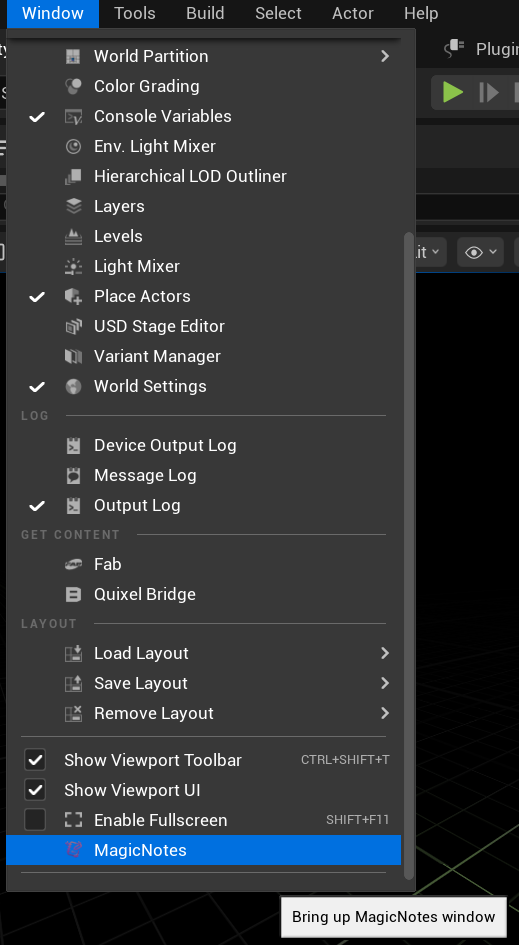
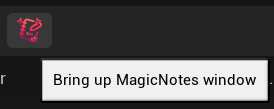
To open the Magic Note window, you will find a button on the toolbar in the level viewport
Note Types
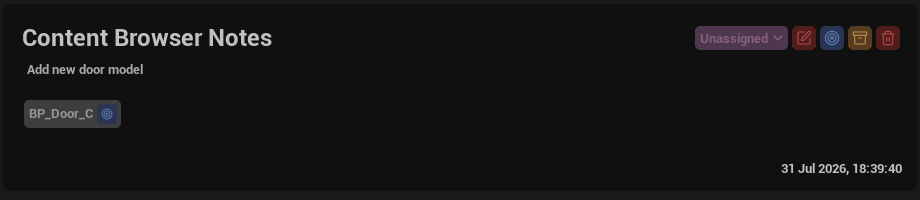
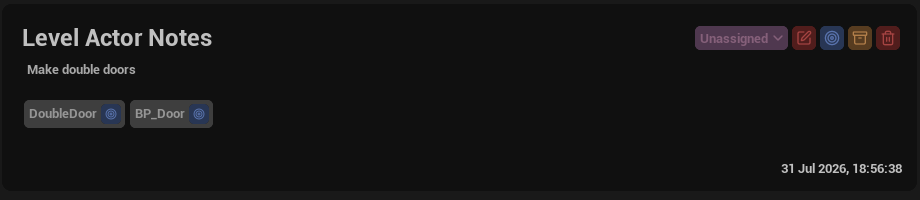
You have the choice of 2 notes, Level Notes and Content Browser Notes. Each of these have different things that they have such as, for the level notes you can connect level actors to the note. For the content browser notes you can connect blueprint files to the note.
Convert Notes
You might want to convert a note, the reason is that Unreal notes are basic. To do this, if the note is an Unreal note, Magic Notes will pick up on it and show you a green refresh icon, this will give you the ability to click it and convert it into a Magic Note.

Settings
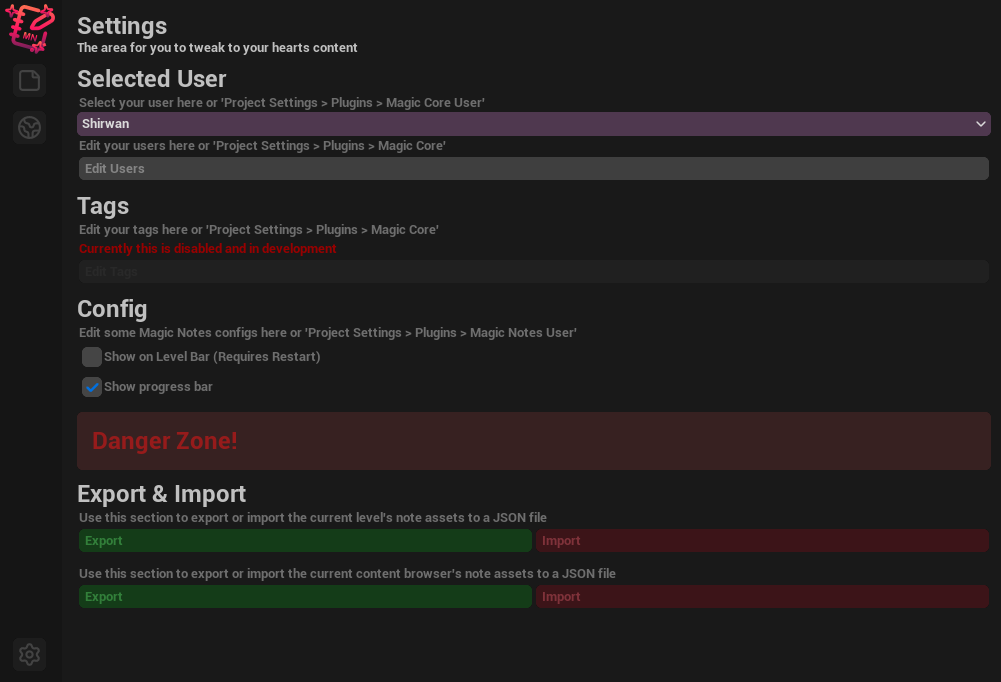
Inside the settings you can find options to set developers, users and tags. To get use these updated values you will need to refresh the Magic Notes or they will be picked up by the Magic Notes when you either close the Magic Note window or scroll through your notes. (It is recommended to close and open the Magic Notes window if you want a full refresh at the moment)
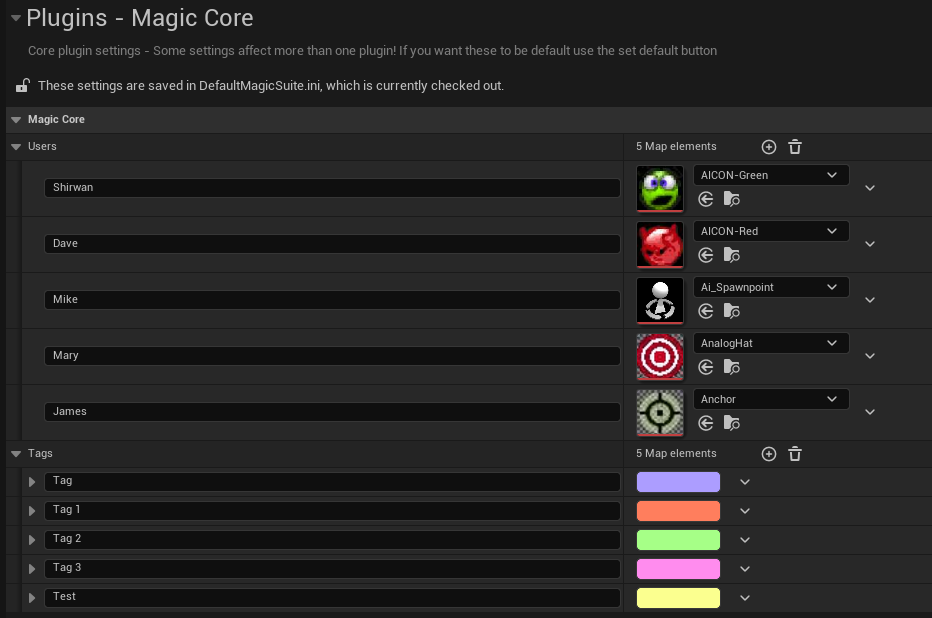

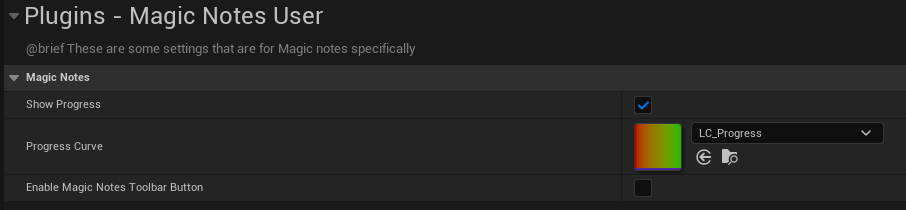
The easiest way to edit the settings is to use the in window settings on the Magic Notes window. This allows you to edit most of the settings from straight in the window! No need to mess around inside the project settings.
Tags
Magic Notes allows you to add tags to the actors in the world to have them show up on the note. You can also add them via the interface.

Search
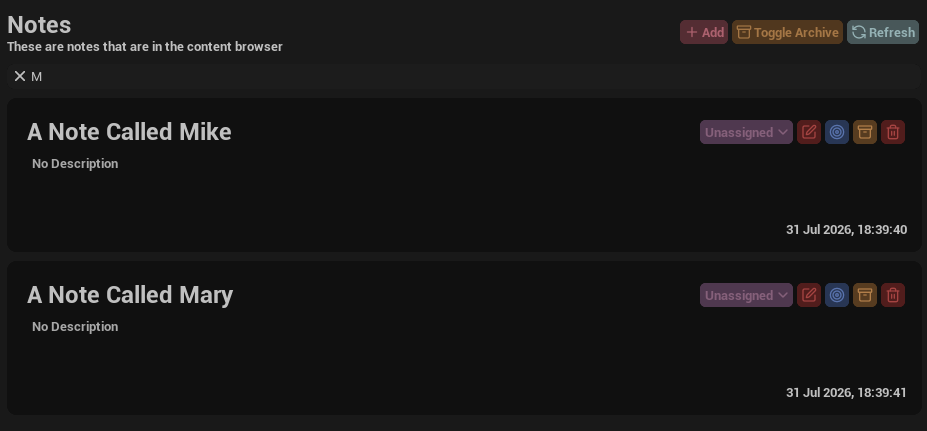
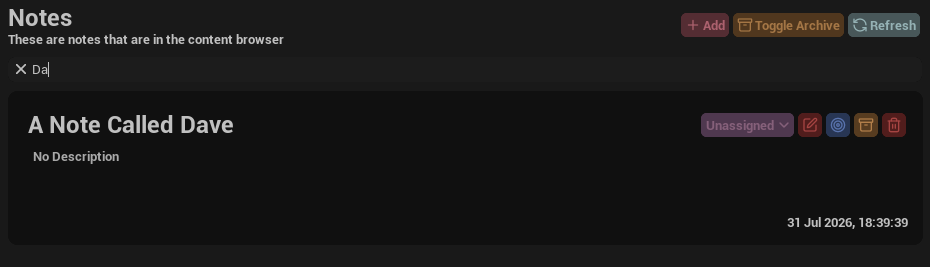
You have the feature to search through your notes which allows easy and quick access. To search you can use the search bar above the notes in the archive and non archive sections. These search bars are tied to the area they are in. So you can't search for archived notes in the non archive area and you can't search for content browser notes in actor notes.
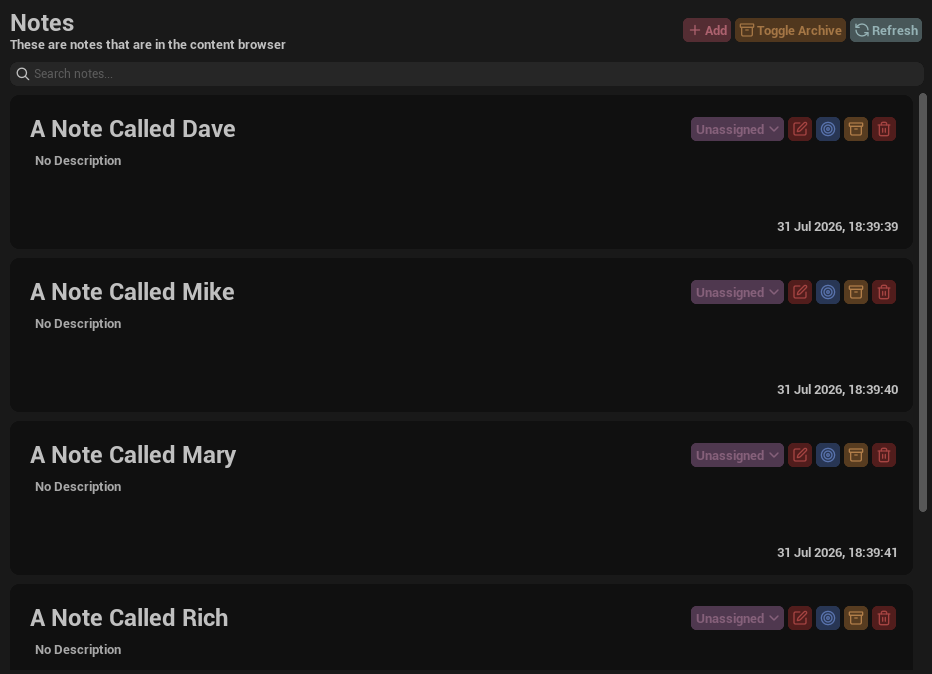
Some example searches:
Connections
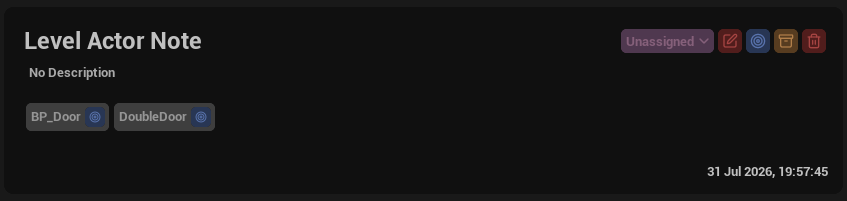
For the level notes you can connect level actors to it so you know what the note is relating to.
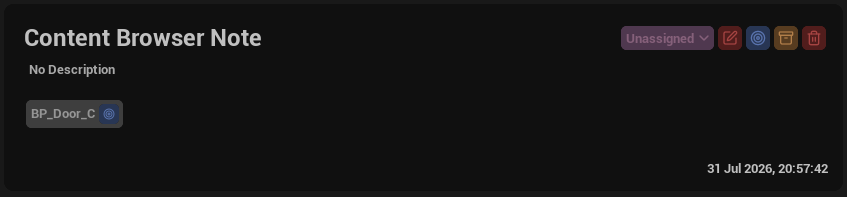
For the content browser notes you can connect blueprints to it so you know what the note is relating to.
Archive
You can archive notes via the box icon on the note. You can restore the note in the same place with the box with an arrow. You can view the archive section using the named toggle button in the toolbar on the plugin.

You can archive notes via the box icon on the note. You can restore the note in the same place with the box with an arrow. You can view the archive section using the named toggle button in the toolbar on the plugin.

You can archive notes via the box icon on the note. You can restore the note in the same place with the box with an arrow. You can view the archive section using the named toggle button in the toolbar on the plugin.

Todo Tasks
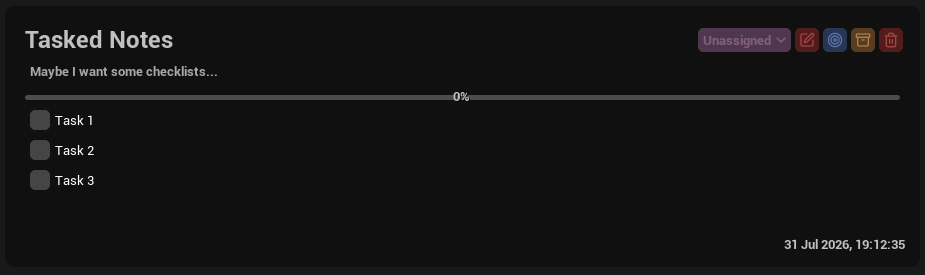
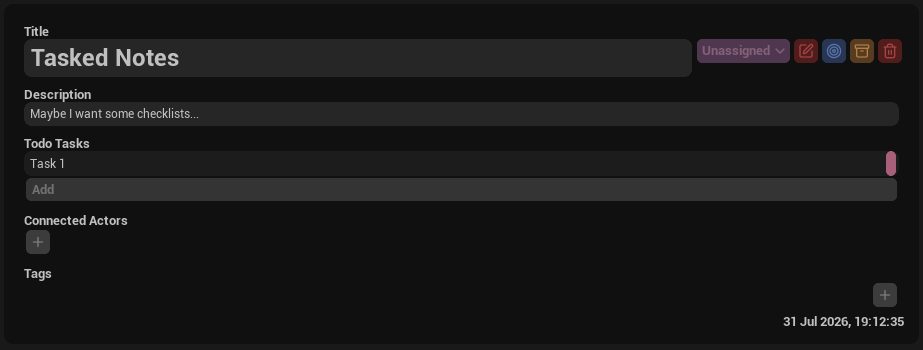
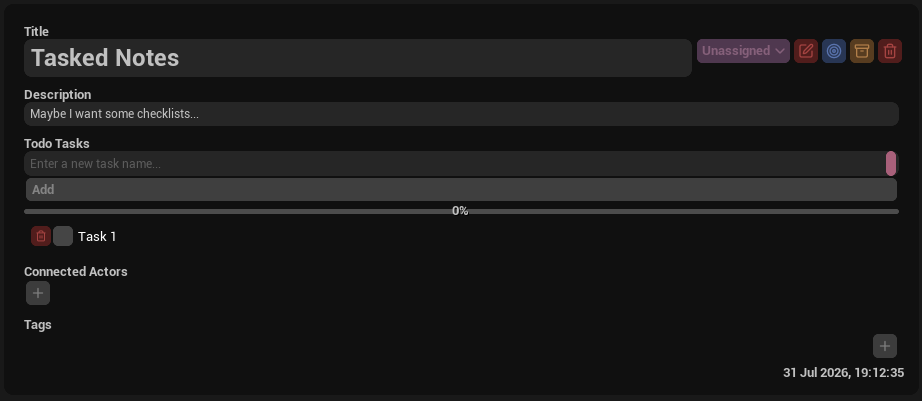
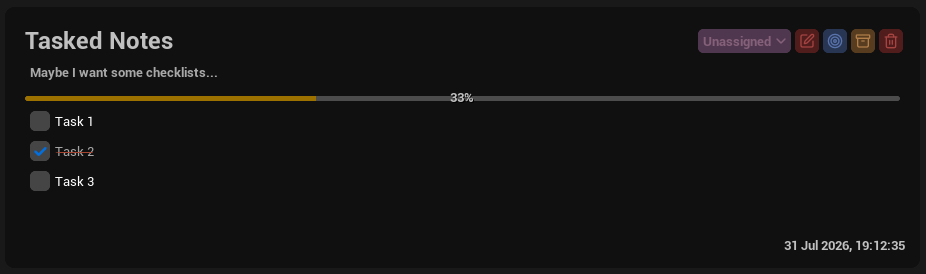
Magic Notes includes a way to add to-do lists to a note. You can do this by heading into edit mode and typing into the new task text box. You can then have the ability to set a task as done or remove the task. This will update a progress bar to show you the progress through the tasks.
Technical Details
Magic Note actors are formed from a single editor utility actor MagicNote which allows for all the functionality of the Magic Note plugin. I have some more features that will be included in new versions of Magic Notes such as filters, better notes and more todo task types. These notes are shown on the Note Actors section
Content Drawer Magic Notes are creatd as Data Assets which are placed into your content folder Content/MagicNotes These notes are named with a GUID so they are nearly 100% random. This is to make sure that the files are not the same when created. These notes are shown on the Notes section.
On This Page